
Introduction
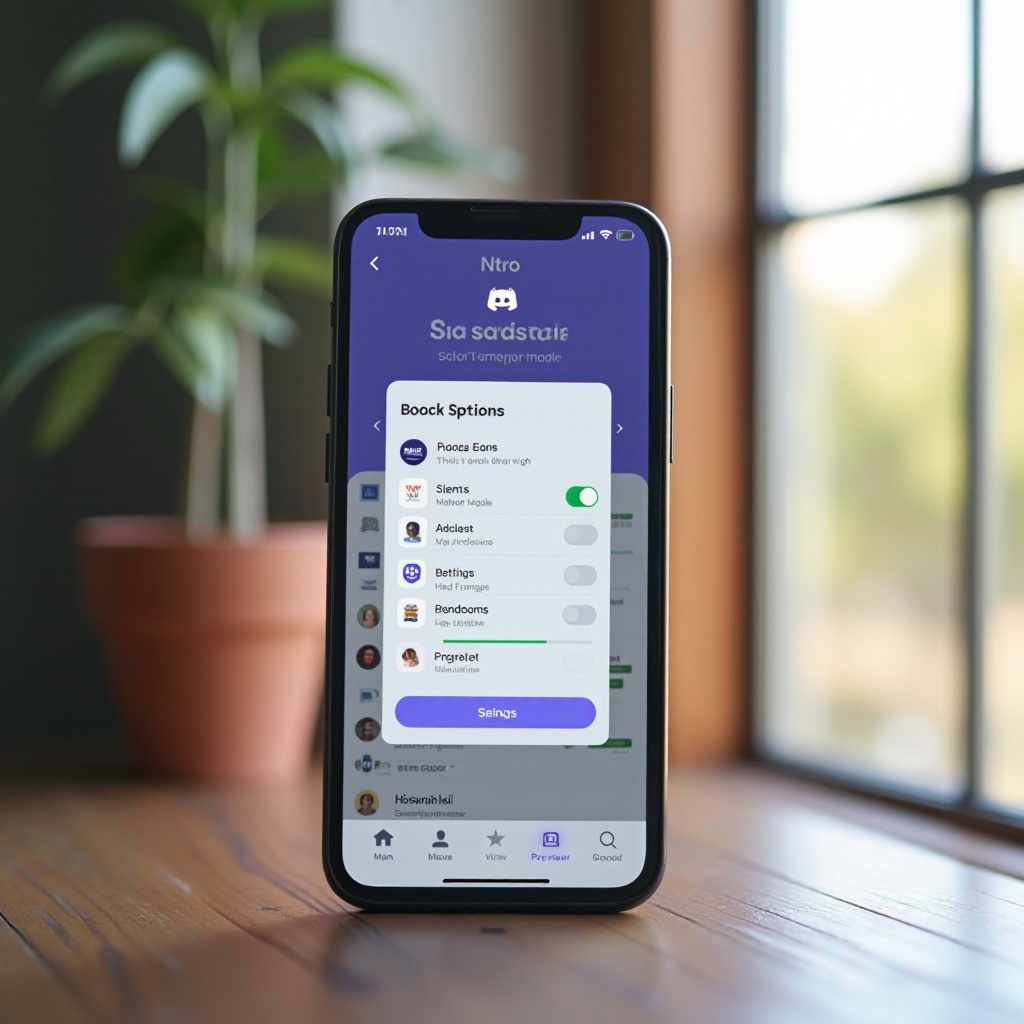
Discord is a favorite platform for gamers and various communities, providing easy and effective communication tools. One of its premium offerings, Discord Nitro, enhances users’ experience with additional features like animated emojis, server boosts, and high-quality streams. However, some users may find these benefits no longer justify the cost, leading them to cancel their subscriptions. In this guide, we offer clear steps on how to cancel Discord Nitro on your mobile device, whether it’s an Android or an iPhone.
Before diving into the cancellation steps, it’s important to understand what Discord Nitro offers and why you might choose to cancel it. Let’s start by looking into the basics of Discord Nitro’s features.
Understanding the Basics of Discord Nitro
Discord Nitro provides various premium features that enhance the typical Discord experience. These include increased upload limits, animated emojis, improved video quality, and server boosts. For many, these features enrich interactions on Discord, yet they come at a cost. Some users may not utilize these benefits fully, leading them to reconsider their subscription.
With a solid understanding of what you’re about to give up, it’s crucial to prepare for the cancellation process. Let’s move forward by setting the stage for a seamless cancellation experience.
Prerequisites for Cancelling Discord Nitro on Your Phone
To ensure a smooth cancellation process, prepare by:
– Verifying your current subscription status.
– Having your Discord account credentials available.
– Checking for a stable internet connection.
These preparations help prevent interruptions as you proceed with cancelling your subscription. Now, let’s walk through the cancellation for Android devices.
Step-by-Step Guide to Cancel Discord Nitro on an Android Phone
Cancelling Discord Nitro on an Android phone involves the following steps:
-
Open the Discord App: Start by launching the Discord app on your Android device.
-
Access Account Settings: Tap the profile icon, typically found at the bottom-right corner, to open your account settings.
-
Navigate to Subscriptions: Scroll down to find and tap on ‘Manage Subscriptions.’ Your active subscriptions will be displayed here.
-
Select and Cancel Discord Nitro: Find Discord Nitro in your list of subscriptions and tap ‘Cancel Subscription.’ Confirm your decision by following the on-screen instructions.
-
Troubleshooting: If issues arise during cancellation, ensure the app is updated to the latest version and restart your device if necessary. Check your internet connection to avoid any disruptions.
Upon completing these steps on Android, let’s switch our focus to cancelling Discord Nitro using an iPhone.
Step-by-Step Guide to Cancel Discord Nitro on an iPhone
For iPhone users, the process mirrors that of Android users, with slight variations:
-
Open Discord App: Launch Discord on your iPhone.
-
Go to Account Settings: Tap the profile icon to enter your settings.
-
Find Your Subscriptions: Locate and tap ‘Manage Subscriptions’ to view your active subscriptions.
-
Execute Cancellation: Choose Discord Nitro and select ‘Cancel Subscription.’ Confirm your decision to finalize the cancellation.
-
Handle Challenges: If challenges occur, updating the app or restarting your iPhone might resolve them. Ensure your internet connection is stable as well.
With cancellation complete, it’s essential to understand what happens next, including the refund policy and features you will lose.
What to Expect After Cancelling Discord Nitro
After cancelling Discord Nitro:
-
Loss of Features: Post-cancellation, access to premium features such as increased upload limits and enhanced emojis will terminate at the end of your current billing cycle.
-
Refund Policies: Generally, Discord does not issue refunds for unused time in your subscription. It’s advisable to reach out to customer support if you have refund-related queries.
Now that you know what to expect, you might want to explore alternative ways to enhance your Discord usage or manage subscriptions effectively.
Exploring Alternatives and Additional Tips
If you’ve decided that Discord Nitro isn’t for you, here are some recommendations:
-
Utilize the Free Discord Experience: Many users find that a free account satisfies their communication needs without the advanced features of Nitro.
-
Consider Other Subscription Options: Occasionally, Discord offers different subscription models that might better fit your usage.
-
Manage Subscriptions Proactively: Regularly review your subscriptions on your mobile device to prevent automatic renewals of services you no longer use.
These strategies can help you optimize your Discord experience and financial outlays effectively.
Conclusion
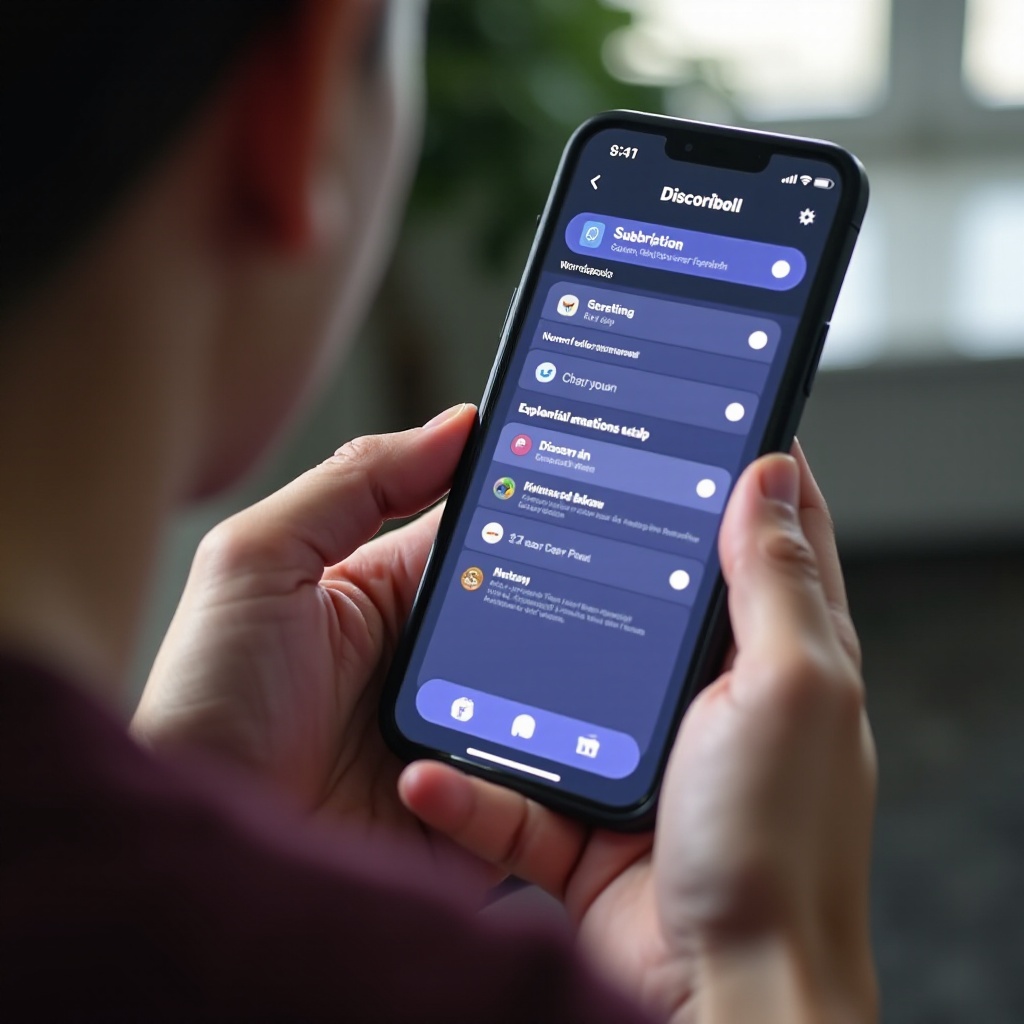
Navigating the process of cancelling Discord Nitro on your phone doesn’t have to be challenging. This guide provides you with the necessary steps and insights for both Android and iPhone users. By understanding both the process and the implications of cancellation, you can make a more informed decision about your discord usage in the future.
Frequently Asked Questions
Can I cancel my Discord Nitro subscription at any time?
Yes, Discord Nitro subscriptions can be cancelled at any time, though features will remain until the billing cycle concludes.
Will I receive a refund after cancelling Discord Nitro?
Usually, Discord doesn’t offer refunds for unused subscription periods. Contact support for specific inquiries.
How can I confirm that my Discord Nitro subscription is cancelled?
After following the cancellation steps, you’ll find a cancellation confirmation in the subscription management section of the app.