

Introduction
Apple headphones, known for their superior audio experience and sleek design, are a vital accessory for many users. Understanding how to efficiently manage and occasionally power down these devices ensures you get the most out of your listening experience. This guide will navigate you through Apple headphones’ power features, help you optimize battery life, and offer troubleshooting tips for seamless use.
Understanding Apple Headphones Power Features
Each type of Apple headphone comes with specific power management characteristics. Wired EarPods, for example, are designed to be always on when connected, as they draw power from the device they are plugged into. On the other hand, wireless options like AirPods and AirPods Pro are more sophisticated, featuring automatic power-off settings when you remove them from your ears or place them in their charging case.
The AirPods Max, Apple’s over-ear offering, includes a power button to manually turn the device on or off, alongside sensors that engage sleep mode when stationary. Grasping these distinctions enhances your control over the headphones’ power usage, amplifying battery efficiency and overall user enjoyment.
Managing AirPods Battery and Power
Efficient use of AirPods involves regular battery monitoring and proactive management. For iPhone users, checking battery status is straightforward via the Control Center, where AirPods battery levels appear once connected. By following a few simple tips, you ensure your AirPods remain reliable:
- Keep the AirPods stored in their case when not in use to preserve battery.
- Avoid leaving them in extreme temperature conditions.
- Regularly update your iOS for battery optimization improvements.
AirPods come with an automatic power-off feature that activates when they are motionless or stored, maintaining battery health. Consistent application of these tips guarantees long-term performance and durability.
Getting the Most Out of Your Apple Headphones
Maintaining and optimizing the use of your Apple headphones not only involves using them effectively but also ensuring they remain in good condition. Storing AirPods carefully in their case protects them from harm and keeps them charged and ready for the next use. Regular software updates provided by Apple often enhance performance and extend battery lifespan, making it crucial to keep your headphones up to date.
Additionally, routine cleaning ensures the clarity of your sound experience. Carefully remove any debris from the mesh with a soft, dry brush. These practices help preserve your headphones’ functionality for an optimal auditory experience.
Troubleshooting Power and Connectivity Issues
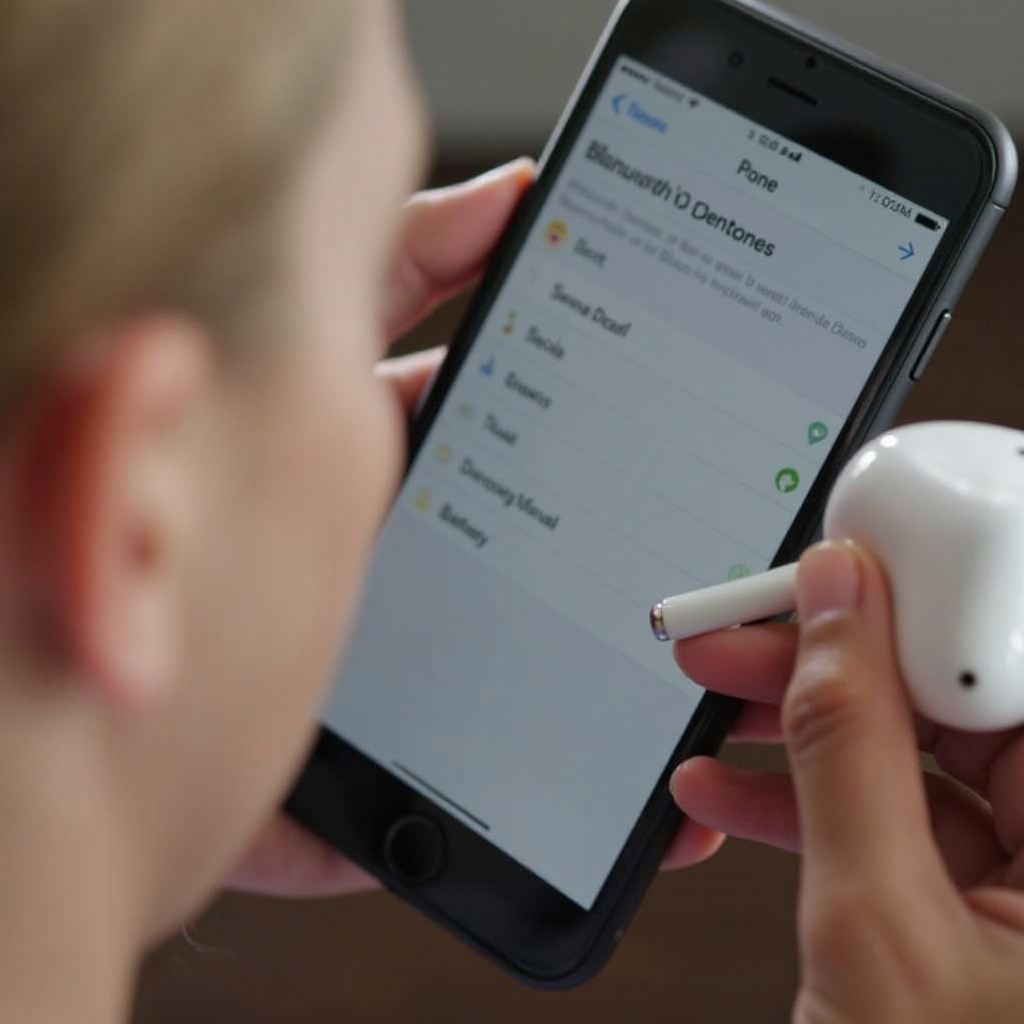
Sometimes, despite careful use, power and connectivity issues may arise. If your AirPods face connection difficulties, you can reset them using these steps:
- Go to Bluetooth settings and forget the device.
- Place AirPods in their case, open the lid, then press and hold the setup button until the light flashes amber and then white.
- Reconnect by selecting AirPods from the available device list.
Should charging problems occur, verify that the Lightning cable is undamaged, and try an alternate power source. Also, ensure all ports on the AirPods case are free from debris. If issues continue, professional support from Apple may be necessary. Recognizing when to seek help ensures your headphones operate smoothly and effectively.

Conclusion
Managing the power settings and optimizing the use of your Apple headphones can significantly enhance the user experience. While wired EarPods stay powered through connection, AirPods and AirPods Max have features designed for energy efficiency and prolonged use. By implementing daily care practices and troubleshooting techniques, you ensure that your device supports your lifestyle harmoniously, keeping your focus on content, not the device.
Frequently Asked Questions
Can I manually turn off my AirPods?
No, AirPods automatically enter a low-power state when placed in their case or removed from your ears.
Do AirPods turn off when not in use?
Yes, AirPods switch to a low-power state to conserve battery when not in your ears or in motion.
How do I reset my AirPods if they’re not turning on?
To reset, place AirPods in their case, open the lid, press the setup button until the status light flashes amber then white.