
Introduction
Android Smart TVs transform how we enjoy entertainment by marrying the capabilities of a computer with a television set. They bring a suite of applications directly into your living room. But sometimes, the Google Play Store might not have every app you’re seeking. That’s where third-party apps come in handy, offering unique features and personalized options. This article will take you through the process of installing these apps while keeping your device secure.
Understanding Android Smart TVs
Before proceeding with the installation process, let’s demystify what Android Smart TVs are. These are televisions that leverage the Android operating system, familiar to many users through their smartphones. The system integrates smoothly with a variety of applications tailored for big-screen entertainment.
What is an Android Smart TV?
Android Smart TVs offer an interactive viewing experience, powered by the Android OS, which allows seamless access to internet-based content and services. With advanced features like voice search, you can control your TV and locate content without lifting a finger.
Features of Android Smart TVs
These TVs come packed with Google Assistant, Chromecast built-in, and support for a wide array of streaming platforms. Although the Google Play Store hosts countless apps, third-party apps can further augment your TV by introducing capabilities not available in the standard store.
Why Install 3rd Party Apps?
Even though the Play Store offers a robust selection of apps, some aren’t available due to regional or publishing restrictions.
Benefits of 3rd Party Apps
- Expanded Selection: Access apps beyond the Play Store’s limitations.
- Unique Enhancements: Discover features not present in standard applications.
- Customization: Tailor your entertainment setup to match your preferences.
Limitations of Official App Stores
Because official app stores enforce strict criteria for app listings, you might miss out on innovative or region-specific applications. Third-party app stores or websites help bypass these limitations, providing greater freedom in app choice.
Preparing Your Android Smart TV for Installation
Now that you’re acquainted with the benefits and limitations, it’s time to prepare your Android Smart TV for installing third-party apps. These foundational steps ensure your device is ready for new installations.
Checking Software Updates
Before installing new applications, ensuring your TV’s software is current is essential:
- Access Settings on your TV.
- Navigate to Device Preferences and select About.
- Choose System Update to verify if there are any pending updates.
Enabling Unknown Sources
To download apps outside the Play Store, enable this setting:
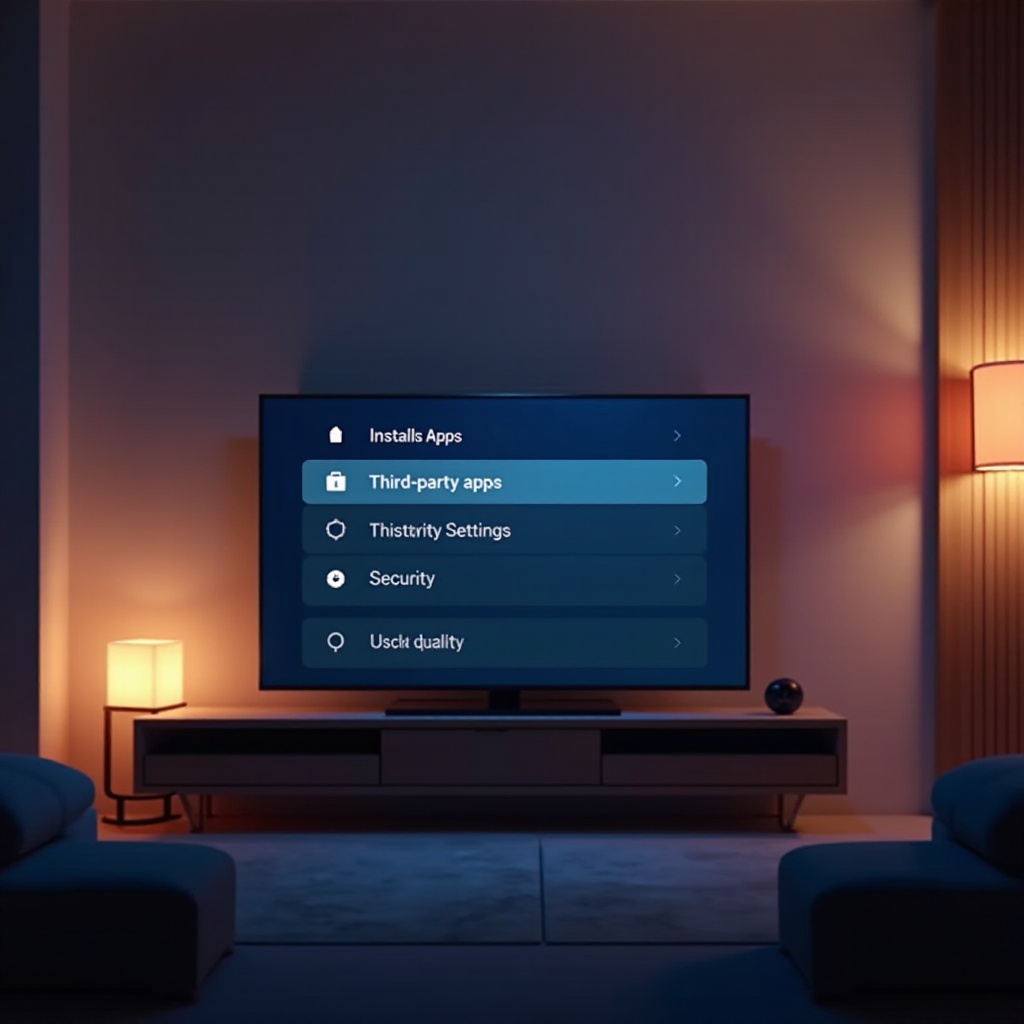
- Go to Settings.
- Select Device Preferences, then Security & Restrictions.
- Toggle Unknown Sources on for the app you’ll use to install APKs, such as a file manager.
Methods to Install 3rd Party Apps
Multiple methods exist for installing third-party apps, and understanding each will help you choose the best approach.
Using APK Files
APK files, the Android equivalent of application installers, simplify app installation.
- Find Reliable Sources: Download APKs from trusted sites like APKMirror or APKPure.
- Transfer via USB:
- Download the APK on your computer.
- Move it to a USB drive.
- Connect the USB to your TV and use a file manager to install the APK.
Utilizing Cloud Services
Cloud solutions allow for seamless APK file transfers without needing physical media.
- Google Drive or Dropbox:
- Upload your desired APK file to cloud storage.
- Use a web browser on your TV to access and download these files for installation.
Using a Computer or Mobile Device
For those who prefer handling installations via a computer or mobile:
- Remote Installations with ADB:
- Employ the Android Debug Bridge (ADB) method to facilitate installations from your computer directly.
- Ensure your TV’s developer mode is active for this setup.
Safety Considerations
Prioritize security while exploring third-party applications to protect your Smart TV.
Recognizing Safe Apps
- Only download from respected websites that offer user reviews.
- Be cautious of apps that ask for excessive permissions which could jeopardize privacy.
Keeping Your TV Secure
- Regularly update your installed apps and the TV’s firmware to close any security gaps.
- Consider anti-virus applications designed for Android TVs to detect potential threats.
Troubleshooting Common Issues
While installing apps, issues may arise, but solutions are available.
Apps Not Installing
- Confirm that you’ve enabled settings for unknown sources.
- Verify the integrity of the APK file by downloading it again if necessary.
Performance Issues Post-Installation
- If apps cause slowdowns, consider uninstalling them.
- Clear the app cache to resolve any decrease in performance.
Conclusion
Adding third-party apps to your Android Smart TV not only boosts your content options but also enhances overall interactivity. By carefully following this guide and maintaining security standards, you can unlock your TV’s full potential without risk.
Frequently Asked Questions
Is it safe to install 3rd party apps on my Android Smart TV?
Yes, it’s safe if you download from trusted sources and manage permissions appropriately.
Can I use the Google Play Store to install these apps?
No, third-party apps must be sourced outside the Play Store as they aren’t listed there.
What should I do if a 3rd party app is not working properly?
Ensure app updates are current, clear the cache, or reinstall the app. Persistent issues may require trying a different app.