
Introduction
Rotating your iPhone screen can substantially enhance your interaction with the device. Whether you’re navigating apps, watching videos, or scrolling through articles, the ability to switch between portrait and landscape modes provides a more comfortable viewing experience tailored to your needs. This guide delves into enabling screen rotation on your device, troubleshooting common snags, and optimizing your screen settings for everyday use.
Understanding iPhone Screen Orientation
Screen orientation on an iPhone refers to how content displays—either in portrait (vertical) or landscape (horizontal) mode. Recent iPhone models, including the iPhone 12, 13, and newer versions, possess built-in features allowing screen rotation through accelerometer and gyroscope sensors. These sensors detect the orientation of your device and adjust the display accordingly.
Understanding portrait and landscape modes is straightforward: portrait, which is vertical, and landscape, horizontal, both offer different advantages depending on the app being used. This knowledge prepares you for customizing screen settings based on specific needs, whether you’re watching a movie or using a GPS app.
How to Enable Screen Rotation on Your iPhone
Enabling screen rotation on your iPhone is simple and can be done in just a few steps:
- Open the Control Center:
- On iPhone X and newer models, swipe down from the top-right corner.
-
On iPhone 8 or older models, swipe up from the bottom edge.
-
Check the Orientation Lock:
-
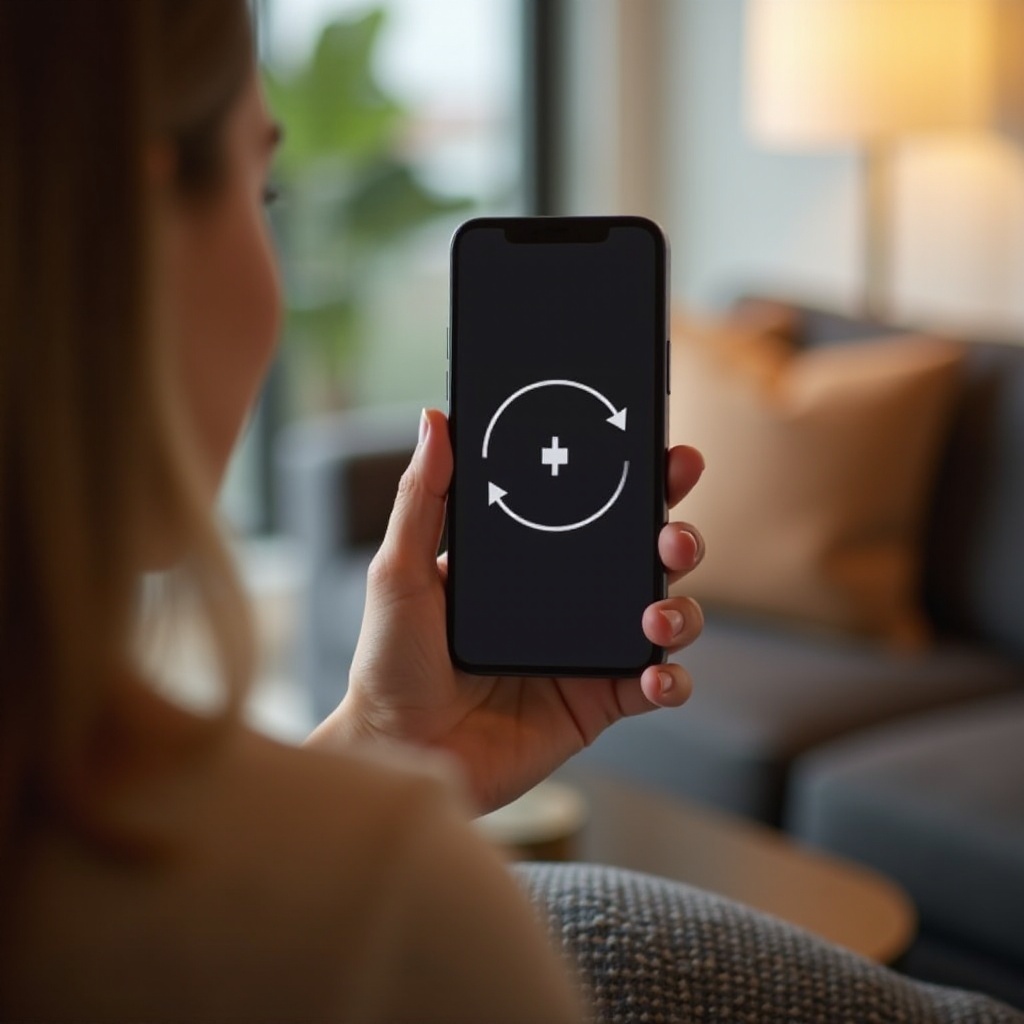
Locate the lock icon with a circular arrow. If highlighted, tap it to disable the orientation lock.
-
Test the Rotation:
- Open an application to verify if the screen rotates when the phone is tilted.
While most apps support both screen modes, it’s important to note some apps may restrict functionality to a single orientation.
Troubleshooting Screen Rotation Issues
If your screen doesn’t rotate, even with the orientation lock off, here are some troubleshooting tips:
-
Orientation Lock On: Ensure that the screen orientation lock isn’t enabled inadvertently. Double-check using the Control Center steps mentioned earlier.
-
Incompatible App: Some applications do not support landscape mode due to design constraints. Test rotation in native apps like Safari or Messages.
-
Restart Your iPhone: Restarting the device can clear temporary glitches affecting screen rotation. Press and hold the side button along with either volume button on iPhone X or newer; for older models, hold the side button only.
-
Update iOS: Ensure your phone’s software is up-to-date. Navigate to Settings > General > Software Update to check for available updates.
Addressing these common issues ensures a smoother experience as your iPhone adapts to your preferred orientation seamlessly.
Additional Tips for Optimizing Screen Use
Expanding beyond basic rotation setup, consider these tips to fully utilize your iPhone screen:
-
Use in Specific Apps: Apps like YouTube and Netflix often prompt a switch to landscape mode for enhanced viewing. Enabling screen rotation makes this transition straightforward.
-
Accessibility Features: Enable on-screen navigation aids by heading to Settings > Accessibility > Touch > AssistiveTouch, providing an alternative method for rotating the screen if traditional swipes prove challenging.
Incorporating these suggestions elevates interaction, allowing for a more customized and user-friendly experience.
When to Disable Screen Rotation
Fixed orientation can be advantageous under certain circumstances:
-
Reading or Browsing: Vertical lock mode may enhance comfort during reading sessions or online browsing.
-
Gaming or Specific Apps: Some games or applications function optimally with a fixed orientation to prevent unexpected perspective changes during critical moments.
Briefly disable rotation to maintain focus and improve usability in these scenarios. Utilize the Control Center to re-enable flexibility when needed.
Conclusion
Mastering iPhone screen rotation not only boosts your device’s utility but also personalizes your daily interactions. Whether for leisure or productivity, tailor your phone settings to suit your lifestyle by following the tips provided. Seamlessly manage your screen’s orientation to enjoy a refined iPhone experience.
Frequently Asked Questions
Why won’t my iPhone screen rotate even with rotation enabled?
Ensure orientation lock is off, restart your device, and verify app compatibility, as some do not support landscape rotation.
How can I tell if the screen lock is on?
Check the Control Center for the lock icon with a circular arrow; if highlighted, the orientation lock is active.
Can I customize screen rotation settings on different apps?
iOS doesn’t support individual app settings for rotation, but with orientation lock off, compatible apps will adjust automatically.