
Introduction
Many Android users find themselves frustrated by their device’s autocorrect function. While this tool aims to enhance your typing by correcting common errors, it often falls short by misinterpreting intentions, especially when it encounters unique spellings or jargon. The ability to edit and customize these settings can transform this source of frustration into a valuable asset. By delving into autocorrect adjustments, you will optimize your Android typing experience, ensuring it matches your unique style and communication needs.
This article provides a step-by-step guide that helps you navigate through your Android device’s settings. By the end, you’ll not only understand how autocorrect functions but how you can make it work for you, improving both accuracy and speed on any Android device.
Understanding Autocorrect on Android Devices
Autocorrect acts as an automated assistant, aiming to correct misspelled words by referencing them against an internal dictionary. When the dictionary lacks terms you frequently use, issues arise as it attempts to ‘correct’ unrecognized words. This limitation is particularly felt with slang, specific names, or industry-specific jargon that hasn’t been predefined.
Despite its challenges, autocorrect learns and adapts over time if given adequate guidance. This feature, ingrained in your device’s keyboard, is designed to aid fluid typing by predicting upcoming words using sophisticated algorithms. However, to achieve optimal performance, it requires manual adjustments that mitigate the guesswork that can lead to errors, creating a seamless typing experience.
Accessing and Navigating Keyboard Settings
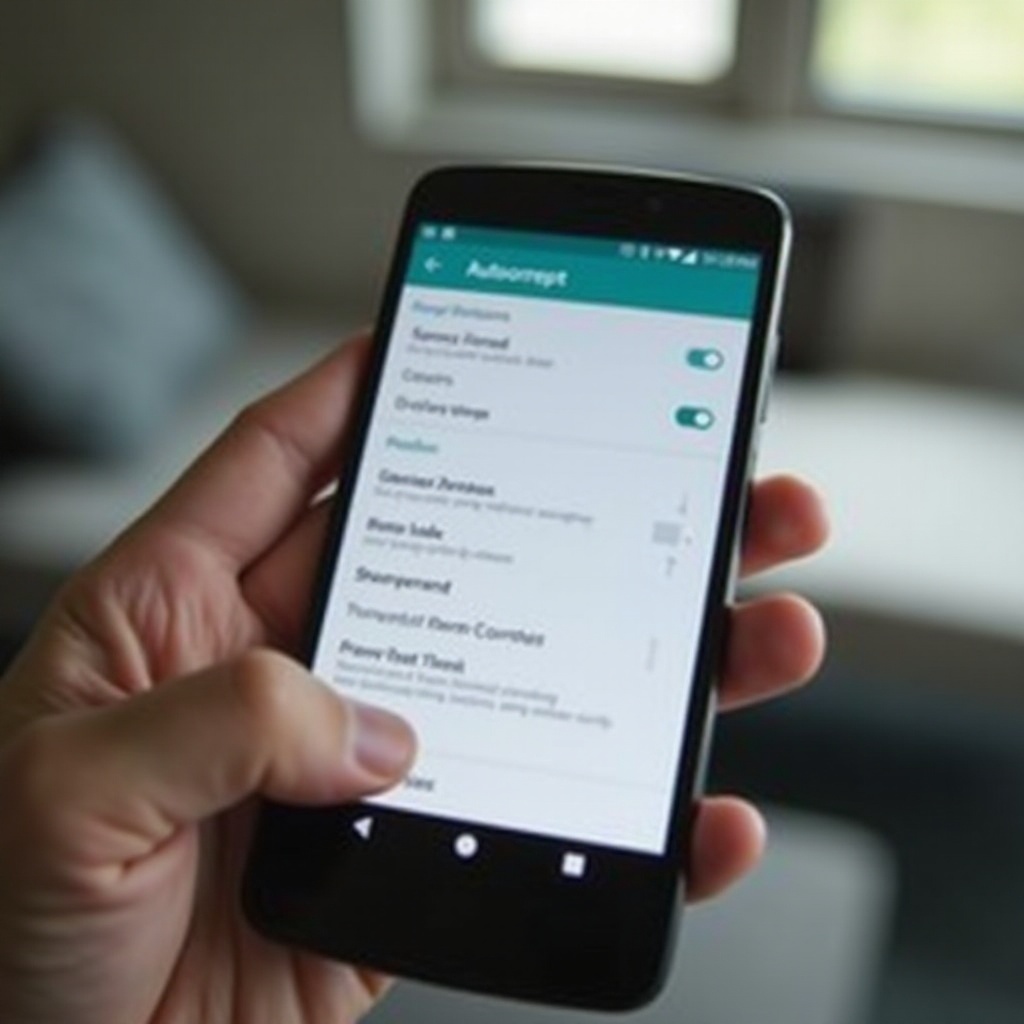
To tailor your keyboard’s autocorrect functionality, begin by accessing your device’s keyboard settings. While the general path remains consistent across devices, there might be slight variations depending on your Android version or keyboard app.
- Open Settings: Launch the ‘Settings’ app on your device.
- Find System or General Management: Navigate towards the ‘System’ or ‘General Management’ section, which houses system-wide settings.
- Select Language & Input: Tap ‘Language & Input’ to reveal keyboard configurations.
- Choose Virtual Keyboard: A list appears showing installed keyboards, like Gboard or Samsung Keyboard.
- Modify Preferences: Select your active keyboard to tweak its settings, including autocorrect.
These steps allow you to access crucial options for customizing your dictionary, adjusting autocorrect sensitivity, and exploring additional modifications to suit your preferences better.
Editing Your Autocorrect Dictionary
Adjusting your autocorrect dictionary is essential for reducing typing errors. It ensures that recurrent words, names, and phrases are recognized correctly. Here’s how:
Adding Words to Your Dictionary
- Manually Add Words: Certain keyboards offer the option to add terms directly while typing by tapping on highlighted words.
- Use Dictionary Settings: Access the ‘Personal Dictionary’ within settings and manually input your collection of words, preventing unwanted corrections.
Removing Unwanted Suggestions
- Tap to Remove: Some keyboards let you remove suggestions by long-pressing them during typing, usually providing a ‘Remove from suggestions’ choice.
- Delete in Settings: Access your personal dictionary through settings, and delete undesirable entries to minimize unnecessary corrections.
Adjusting Autocorrect Sensitivity
- Open Autocorrect Settings: Adjust settings to control the aggressive level of corrections.
- Sensitivity Scale: Certain keyboards include a sensitivity scale, allowing you to fine-tune the degree of correction applied.
Implementing these methods allows autocorrect to support your typing habits, enhancing both accuracy and personalization.
Utilizing Third-Party Keyboard Apps for Enhanced Customization
For individuals desiring additional features, third-party keyboard apps present expanded customization options. Notable choices like SwiftKey, Gboard, and Grammarly offer in-depth functionality improvements.
- SwiftKey: Delivers sophisticated predictive technology, personalizing based on typing behavior across devices.
- Gboard: Integrates seamlessly with Google’s ecosystem, offering powerful autocorrect and search features.
- Grammarly Keyboard: Focuses on correcting grammar alongside spelling, ideal for maintaining professional communication.
Ensure you download these apps from reputable sources like the Google Play Store to safeguard your device’s security.
Advanced Tips for Autocorrect Management
Elevate your device’s autocorrect functionality with these advanced strategies:
- Regularly Update Your Dictionary: Keep your dictionary current by adding and removing words as needed to match your evolving language.
- Switch Keyboards Temporarily: Experiment with different keyboards if recurrent issues persist, assessing which options offer the best compatibility.
- Utilize Input Shortcuts: Establish shortcuts for repeated phrases to streamline your typing process significantly.
Incorporating these strategies not only fine-tunes your keyboard but also lessens autocorrect-related disputes considerably.

How to Disable Autocorrect Entirely
Occasionally, turning off autocorrect may prove to be the most effective solution, especially if your language is eclectic or filled with technical terminology often misinterpreted.
- Navigate to Keyboard Settings: Access the settings menu for your current keyboard.
- Locate Autocorrect Option: Search for ‘Text Correction’ or ‘Typing’ adjustments.
- Disable Autocorrect: Use the toggle to switch off autocorrect entirely.
This option gives you the freedom to communicate without interference, especially when dealing with specific terminology.
Conclusion
Understanding and editing autocorrect settings on Android empowers users to engage in faster, more accurate typing. By mastering customization options within native settings or through third-party apps, you ensure a typing experience tailored to personal preferences. Whether you choose to manage dictionaries, tweak sensitivities, or opt for alternative keyboards, you are equipped to take control of your communication.
Frequently Asked Questions
How can I reset my autocorrect settings on Android?
To reset your autocorrect settings, navigate to your keyboard settings and select ‘Reset settings’ or ‘Clear data,’ depending on your keyboard and device.
Are third-party keyboard apps safe to use on Android?
Yes, as long as they are downloaded from reliable sources like the Google Play Store. Review app permissions and user reviews to ensure safety.
Can I sync my custom dictionary across multiple devices?
Some keyboards offer cloud sync options. Check if your keyboard app supports syncing across devices under settings.