
Introduction
In today’s fast-paced world, staying alert to important notifications is crucial. iPhone users can leverage flash notifications to ensure they never miss an alert. This feature is particularly helpful for those in noisy environments or individuals with hearing impairments, providing a visual cue for incoming notifications. By the end of this guide, you’ll understand how to enable flash notifications on your iPhone, customize the settings, and troubleshoot common issues that might arise.
Understanding iPhone Flash Notifications
Flash notifications are a useful feature that alerts iPhone users to incoming messages by using the LED flash on the rear camera. Originally designed to enhance accessibility, this feature allows notifications to be seen rather than just heard. Unlike audio or vibration alerts, flash notifications are especially valuable in dark or noisy environments, making them indispensable for many users. Implemented through the iPhone’s Accessibility settings, these alerts prove beneficial not just for individuals with hearing challenges but for anyone needing a clear visual alert.
Step-by-Step Guide to Enable Flash for Notifications
Activating flash notifications on your iPhone is a straightforward process. Follow these steps to set it up.
Checking Compatibility
- Ensure your device is an iPhone 4 or later model; older versions do not support this feature.
- Make sure your iOS is updated to the most recent version, as updates may offer essential features and enhancements.
Navigating the Accessibility Settings
- Open the ‘Settings’ app on your iPhone.
- Scroll and select ‘Accessibility.
- Tap on ‘Audio/Visual’ under the ‘Hearing’ section.
Activating LED Flash Alerts
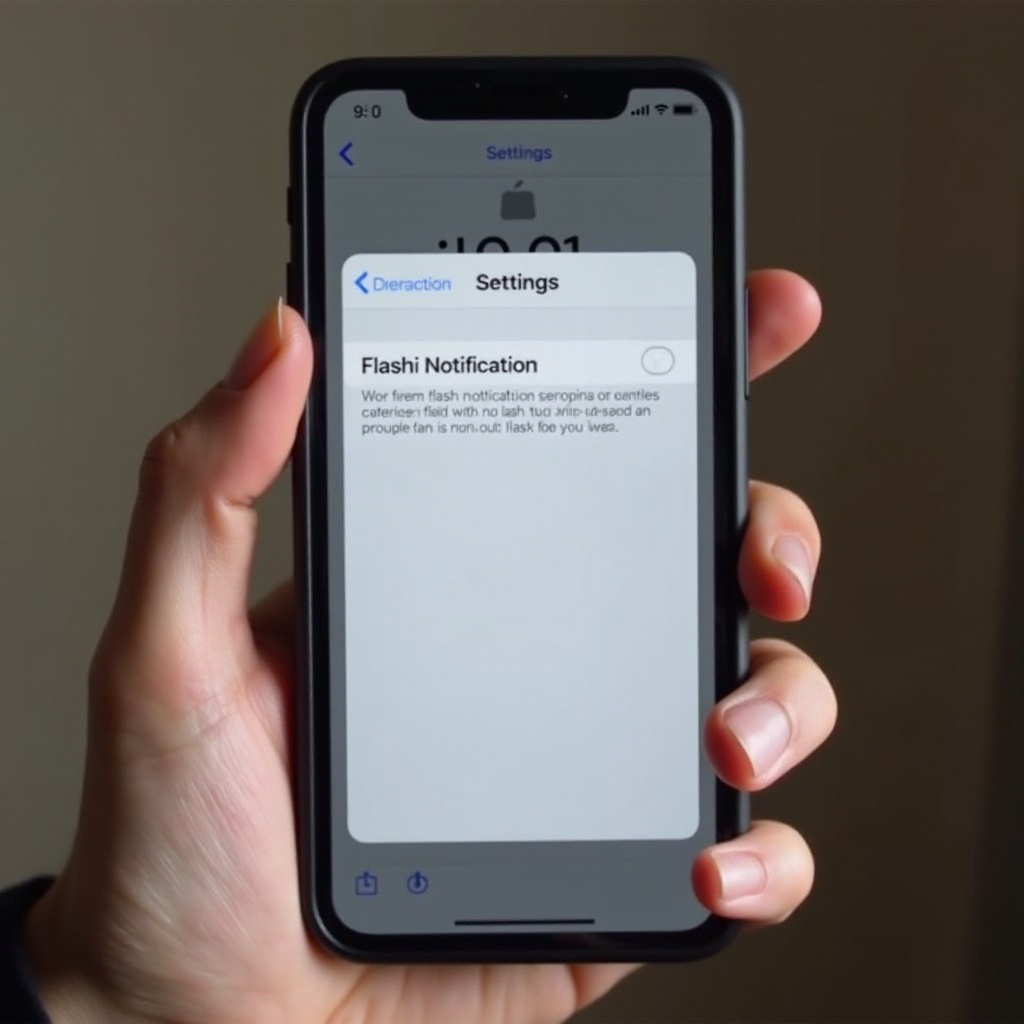
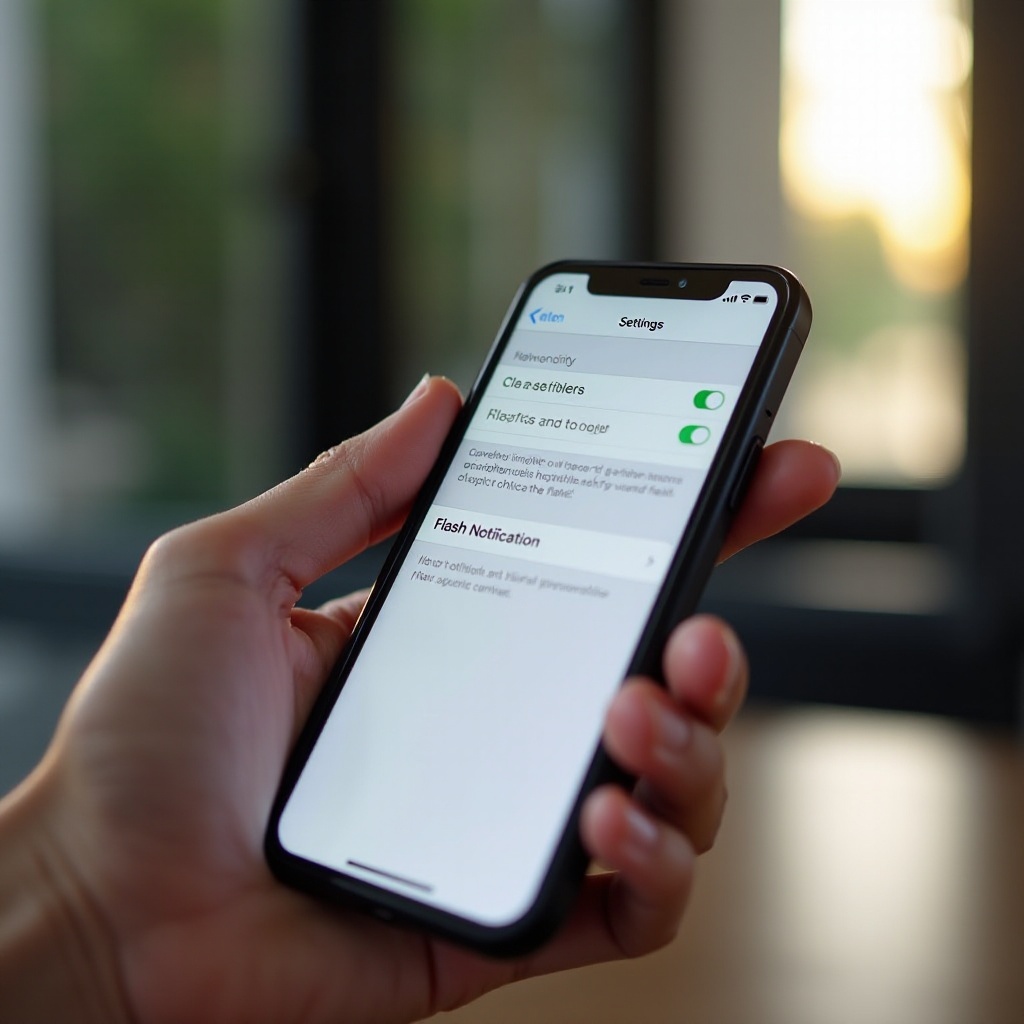
- In the ‘Audio/Visual’ settings, locate the ‘LED Flash for Alerts’ option.
- Turn on the toggle switch for flash notifications.
- You can also enable ‘Flash on Silent’ for alerts even when your phone is in silent mode.
After completing these steps, your device will blink the flash when receiving notifications, providing a clear and visual alert method.
Customizing Flash Notification Settings
Customizing your iPhone’s flash notifications allows you to tailor the alerts to fit your specific needs and preferences.
Flash Alerts for Specific Apps
Though iOS doesn’t permit direct customization of flash alerts for individual apps, users can manage app-specific notification settings. Adjusting the notifications of certain apps via the ‘Notifications’ section in ‘Settings’ allows you to prioritize critical alerts visually.
Adjusting Flash Intensity
While there’s no direct way to alter the intensity of the flash, users can focus on managing notification frequency. Reserve flash alerts for significant updates by fine-tuning which app notifications receive a priority.
Benefits and Drawbacks of Using Flash Notifications
While flash notifications offer key advantages, they also come with some potential drawbacks.
Advantages for Accessibility
LED flash alerts are invaluable for those with hearing impairments, providing a reliable visual cue. In noisy or dark settings, such as concerts or low-light environments, these alerts become even more beneficial.
Potential Downsides
Overuse of flash notifications can lead to quicker battery depletion, especially with numerous alerts. They can also be distracting in specific situations like meetings or theaters, where discreetness is key.
Troubleshooting Common Issues
If you encounter problems with flash notifications, here’s how to address them effectively.
Flash Alerts Not Working
- Ensure the iPhone’s volume is adequate, as certain settings depend on it.
- Revisit the flash settings under ‘Audio/Visual’ and restart the device if necessary.
Battery Concerns
To avert excessive battery consumption, manage the number of apps that send notifications via the ‘Settings’ app, thereby reducing the frequency of flash alerts.
Alternative Notification Methods on iPhone
Should flash notifications not meet your needs, explore alternative options available on your iPhone.
Vibration Alerts
Enabling vibration provides another tactile alert method. Adjust these settings under ‘Sounds & Haptics’ for a personalized vibration rhythm.
Sound and Haptic Feedback
Sound alerts and haptic feedback are excellent alternatives, offering customization for both tones and vibration patterns, ensuring notifications are noticeable without relying on visual cues.
Conclusion
Flash notifications on your iPhone are an excellent way to ensure that you don’t miss essential alerts, particularly in environments where receiving audio cues is challenging. By fine-tuning settings, considering the benefits against the drawbacks, and proactively troubleshooting potential issues, users can fully optimize their notification system, enhancing both convenience and accessibility.
Frequently Asked Questions
Can I use flash notifications with third-party apps?
Yes, but customization is done through the app’s notification settings.
Will flash notifications drain my battery?
They can, especially with frequent alerts. Adjust your settings to mitigate battery drain.
How do I turn off flash notifications?
Toggle off ‘LED Flash for Alerts’ in the ‘Audio/Visual’ settings.